
The new myPoints app
We’ve improved the myPoints app for you. Here we show you how to switch to the new myPoints app quickly and easily – and take your points and settings with you, of course.
-
The myPoints app rewards you for being active, loyal and digitally engaged and in a way that focuses on the points you collect.
-
The new app is not an activity tracker, just the basis for our wide-ranging bonus and loyalty scheme. Individual activity types are no longer important.
-
myPoints uses the health and fitness data provided by Apple and Google. Whether or not this data is visible depends on whether the linked fitness apps transfer the data correctly. This means it is crucial to get the settings right.
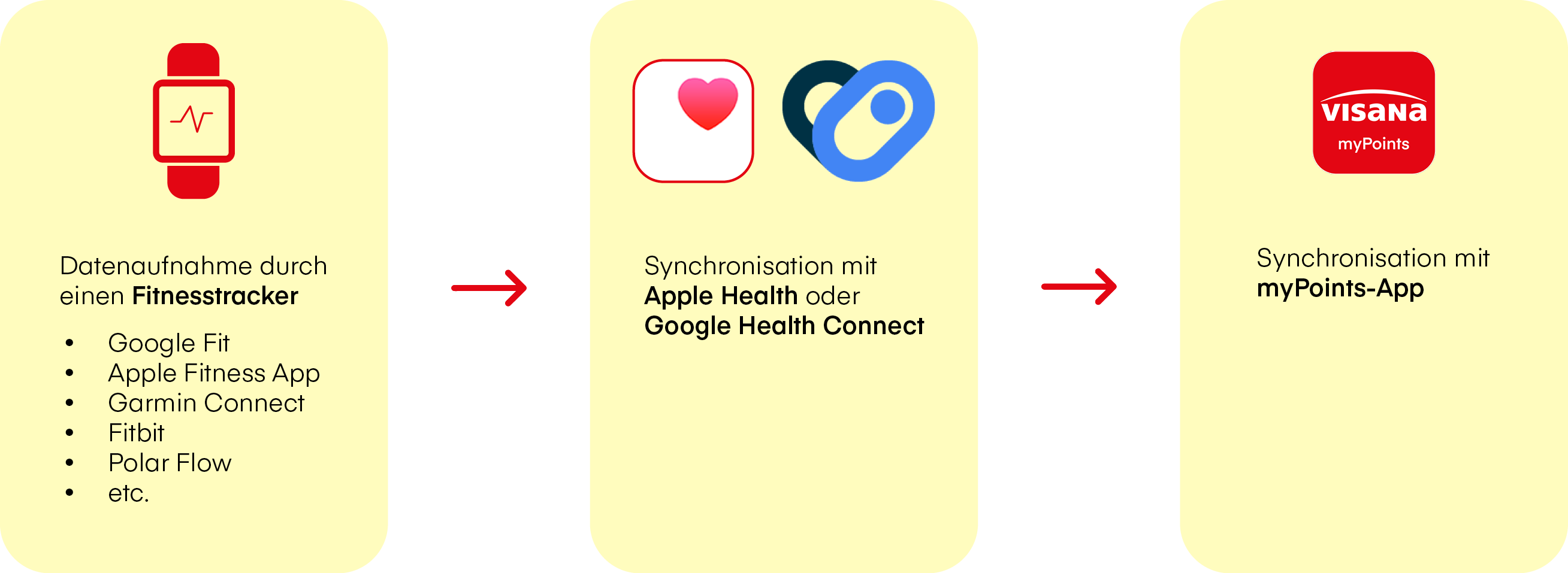
How the service works
-
Connect your fitness tracker with Apple Health (iOS) or Health Connect (Android) and assign Write permissions. It will then be possible to write data from your tracker to the data resource.
-
Open the myPoints app and switch to your profile.
-
Choose ‘Fitness tracker’ in your profile so that you can manage the connection with Apple Health (iOS) or Health Connect (Android).
-
Tap ‘Open system settings’ and assign the appropriate Read permissions for Apple Health (iOS) or Health Connect (Android).
-
iOS:
– Go to system settings and open ‘Apps’
– Tap ‘Health’, then ‘Data Access & Devices’, then ‘myPoints’.
– Enable all permissionsAndroid:
- Tap ‘Permissions’ and ‘Health, Fitness and Wellness’.
– Then activate all permissions so that myPoints can read data from Health Connect. -
Your steps and calories will be synchronised and converted into points. They will be visible directly in the myPoints app when you reload.
Managing your fitness data
How to connect popular fitness trackers to Health Connect for Android

Click ‘More’ on the Garmin Connect home screen

Scroll down the ‘More’ page to ‘Settings’ and tap ‘Settings’

In ‘Settings’, tap ‘Connected Apps’

In ‘Connected Apps’, tap ‘Health Connect’

In Health Connect, tap the ‘First Steps’ button

To ensure the two apps are connected properly, the following minimum permissions must be granted:
- Active calories burned
- Total calories burned
- Steps
Otherwise, you have the option of granting permissions in line with your needs or to grant full permissions by tapping ‘Allow all’.
Once you have granted all the permissions you want to grant, tap ‘Allow’

If synchronisation has been successful, you will see this message: ‘Now sharing data from Garmin Connect with Health Connect’.

Tap the menu icon (three horizontal lines) at the top left of the Polar Flow ‘Today’ home screen

In the menu, tap ‘General Settings’

In General Settings, toggle the ‘Health Connect’ switch

To ensure the two apps are connected properly, the following minimum permissions must be granted:
- Active calories burned
- Total calories burned
- Steps
Otherwise, you have the option of granting permissions in line with your needs or to grant full permissions by tapping ‘Allow all’.
Once you have granted all the permissions you want to grant, tap ‘Allow’

As soon as you have granted access, the ‘Health Connect’ switch will toggle
You can ignore the ‘Some permissions missing’ message. If you have granted all permissions in step 4, this message will not appear.

Tap the smartphone and watch icon at the top left of the Fitbit app home screen

On the ‘Connected to Fitbit’ screen, scroll down to ‘Health Connect’ and tap ‘Set up Health Connect’

On the ‘Get more from your data with Health Connect’ screen, click ‘Set up’

To ensure the two apps are connected properly, the following minimum permissions must be granted under ‘Write access’:
- Total calories burned
- Steps
Otherwise, you have the option of granting permissions in line with your needs or to grant full permissions by tapping ‘Allow all’.
Once you have granted all the permissions you want to grant, tap ‘Allow’

If synchronisation has been successful, you will see this message: ‘Fitbit is now syncing with Health Connect’

Tap the profile icon at the bottom right of the Google Fit home screen

On the Profile screen, tap the Settings (cog) icon at the top right

In Settings, toggle the ‘Sync Fit with Health Connect’ switch

On the ‘Sync Fit with Health Connect’ screen, click ‘Set up’

To ensure the two apps are connected properly, the following minimum permissions must be granted:
- Total calories burned
- Basal metabolic rate
- Steps
Otherwise, you have the option of granting permissions in line with your needs or to grant full permissions by tapping ‘Allow all’.
Once you have granted all the permissions you want to grant, tap ‘Allow’

If synchronisation has been successful, you will be automatically rerouted to the ‘Connected’ page
How to connect popular fitness trackers to Apple Health for iOS

Click ‘More’ on the Garmin Connect home screen

Scroll down the ‘More’ page to ‘Settings’ and tap ‘Settings’

In ‘Settings’, tap ‘Connected Apps’

In ‘Connected Apps’, tap ‘Health Connect’

In Apple Health, tap the ‘Connect with Apple Health’ button

To ensure the two apps are connected properly, the following minimum permissions must be granted:
- Active energy
- Resting energy
- Steps
Otherwise, you have the option of granting permissions in line with your needs or to grant full permissions by tapping ‘Enable all’.
Once you have granted all the permissions you want to grant, tap ‘Allow’

If synchronisation has been successful, you will see this message: ‘You’re connected with Apple Health’

Tap the menu icon (three dots) at the bottom right of the Polar Flow ‘Today’ home screen

In the menu, tap ‘General Settings’

In General Settings, toggle the ‘Apple Health’ switch

To ensure the two apps are connected properly, the following minimum permissions must be granted:
- Active calories burned
- Total calories burned
- Steps
Otherwise, you have the option of granting permissions in line with your needs or to grant full permissions by tapping ‘Enable all’.
Once you have granted all the permissions you want to grant, tap ‘Allow’

When you are back in the General Settings, you can sync your data by tapping ‘Sync now’

Please contact our support team for help with anything to do with myVisana or myPoints.
Frequently asked questions
Think of these services as the central repository for your health data on your smartphone.
Today, people often use a variety of apps and devices: a watch for jogging, an app to count calories and perhaps even a digital set of scales. Without a central hub, this data is scattered across individual ‘data silos’.
- Apple Health (for iPhones) and Health Connect (for Android) solve this problem. They collect data from all your different fitness apps and devices in one secure place.
- They act as intermediaries: your jogging app securely stores your step count there and, with your permission, we can retrieve your points total from there. This means that your data is kept under your control at a central location, rather than being left in lots of different databases.
We do not wish to tell you which sports watch or fitness tracker to wear.
- One connection for all devices: Instead of being directly linked to individual manufacturers only, such as Garmin, Fitbit or Polar, we use your smartphone’s central interface.
- Maximum compatibility: With us, regardless of whether you use a smartwatch, fitness tracker or dedicated jogging app – as long as your device can send data to Apple Health (iPhone) or Health Connect (Android), your points automatically count.
- Future-proof: Even if you switch to a completely new watch brand tomorrow, you can still use our app. You simply connect your new device via Apple Health or Health Connect.
Visana’s digital bonus programme myPoints is very easy to use: the more you exercise, the more money you get back at the end of the year. All customers with Visana top-up insurance can take part in the programme.
Alongside exercise, you can also earn points for loyalty, e.g. by taking out multi-year contracts or making customer referrals.
You register for myPoints in the myPoints app. To do so, you must already have a myVisana login. When registering for myPoints for the first time, you are automatically directed to the available myPoints data sources during the registration process.
Access to myPoints is available to all Visana customers who are domiciled in Switzerland and meet all of the following criteria:
- They are aged 12 or over.
- They have active top-up insurance, as per IPA/VVG.
- They have access to the myVisana customer portal and the myPoints app.
- They use a fitness tracker app compatible with either the Apple Health or Google Health Connect fitness platform via a smartphone.
In a family account, family members eligible to participate are automatically visible.
People with health impairments that prevent them from being more active in daily life can also use myPoints and gain rewards for customer loyalty.
You can start as soon as you comply with the terms of participation (in German). You already receive your first points as a little welcome gift upon successful registration.
Smartphones and fitness tracker watches use their motion sensors to deliver data on the user’s activity. With this data, they calculate the number of steps taken and calories burnt, which myPoints then uses to calculate points.
If you only use your smartphone, the data could be incomplete, because under certain circumstances, you might not carry your smartphone with you at all times. Apple Health and Google Health Connect work better if you use external devices, such as smartwatches or fitness tracker watches. However, this is not strictly necessary for myPoints.
The terms and conditions of the respective fitness tracker app, as well as those of the Apple Health and Google Health Connect platforms, apply with regard to the collection of step and calorie data. Your step and calorie data is used for the display in myPoints and for calculating points. In addition, this data can be evaluated and analysed in anonymised form for the purpose of ongoing optimisation and customer-friendly design.